



This product is available natively in English, but it has automated translations for most major languages.
Contents: Virtual Touch Screen (), Resize Window (⇲)
Virtual Touch Screen ()
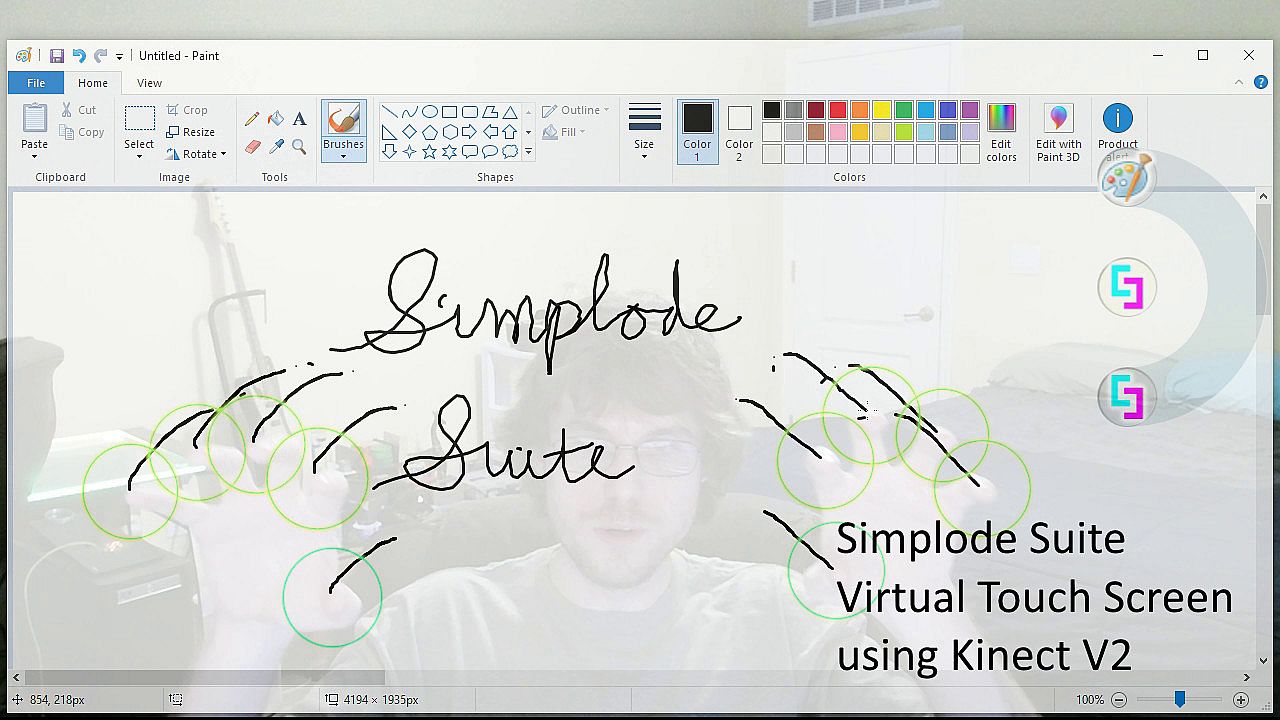
Enable virtual touch screen.- This feature is experimental and may not work as expected. It requires the Kinect V2 hardware and compatible adapter for your system. Beware of Kinect system requirements.
- The Kinect V2 has been discontinued, but you can still find them at affordable prices along with PC power adapters of questionable authenticity. I have looked into supporting other depth sensing products, but the ones I have encountered simply do not produce data of sufficient quality to use my algorithms.
- You can get around the need for an adapter if you are capable of soldering on your own 12-volt power jack. A cheap generic 12-volt power adapter may potentially cause problems with your device, but my troubles usually seem to be weak signal and electromagnetic interference. By soldering on your own power jack, your data connection can be simplified to a single data cable, which is a far superior solution with regards to electromagnetic interference and signal resistance. Using the official adapter, the signal has to flow through an additional data cable, an additional junction, and two additional metal to metal contacts, resulting in increased resistance and interference on the signal. If you are afraid to solder the power jack on yourself, you might be able to find one at an online marketplace already done for you.
- My personal experience is that most USB 3.0 hosts will not work correctly with the Kinect V2. I have seen success with Renesis chipset USB 3.0 PCIe cards as well as Intel motherboard USB 3.0 ports. The Renesis USB 3.0 PCIe cards I have used only require a PCIe3.0x1 slot, but I have only found it to be compatible with the Kinect when plugged into my x8 and x16 slots for unknown reasons, and even then, some of my x8 and x16 slots also did not work.
- Virtual Touch Enabled (Default: False)
- Virtual Touch Dead Zone (Default: 2)
Raising this value reduces the amount of shaking in virtual touches. - Virtual Touch Strictness (Default: 1)
This value controls how strict the tool is in tracking virtual touch information. - Virtual Touch Infrared Correction (Default: 1)
Infrared brightness information is used to filter out bad depth data. Setting this to 0 effectively disables this feature. Higher values make the infrared check more strict. If you set this too high, the tool may lose track of your fingers more often. If you set this too low, phantom touches may be triggered. - Virtual Touch Click Engage Threshold (Default: 1)
Reducing this value makes it easier to click with the virtual touch screen, but may increase the probability that you have unintentional clicks. - Virtual Touch Click Disengage Threshold (Default: 1)
Reducing this value makes it easier to release a click with the virtual touch screen, but may increase the probability that your click is released unintentionally. - Virtual Touch Click Depth Overlay (Default: False)
This overlay helps in diagnosing problems with using the virtual touch feature. You can use it to see if you are too close or too far from the sensor. - Virtual Touch Camera Margin (Default: 330,180,310,180)
You can use the camera margin to zoom in the camera. The camera does not match up perfectly to the depth sensor, so the sides may not work for touch detection. By increasing the margin, you shrink the field of view of the camera which in turn can cut out non-functional areas. - Virtual Touch Sensor Margin (Default: 20,90,65,90)
The depth sensor may pick up lots of bad data near its edges. Increasing the size of the margins can avoid bad edge data. When used in conjunction with a properly sized camera margin, you can still touch the edges of the screen. - Virtual Touch Front Overlay (Default: True)
This overlay attempts to appear in front of all other windows. This is almost necessary, as it shows you where your hands are pointing before you activate virtual touch detection. This setting may not go into effect until you turn virtual touch off and on. - Virtual Touch Overlay Opacity (Default: 0.2)
Controls how transparent the front camera overlay is. This setting may not go into effect until you turn virtual touch off and on. - Virtual Touch Back Underlay (Default: True)
The underlay has similar purposes to the overlay, except it tries to sit behind your windows, including your desktop icons. This is more for style, as having a mostly transparent front layer and a fully opaque back layer gives the stylistic impression that you are behind a futuristic semi-transparent touchscreen. Aside from its style purposes, it also can give you a better view of what you are doing without taking away screen real estate from other things, so I'd say leave it on if it isn't slowing you down. This setting may not go into effect until you turn virtual touch off and on. Only works when front overlay is also enabled. - Virtual Touch Zone (Default: 0,0,0,0)
This setting allows you to specify the coordinates on screen for the virtual touch zone. If you have multiple monitors, the sliders might not get you to the values you need, in which case you will need to type in the values. If you set all to 0, it will default to fill one of your monitors. - Virtual Touch Pause (Default: False)
When enabled, touch input from the virtual touch screen will be paused. - Touch Glitch Fix (Default: True)
Disables stylus handling in the tool GUI. For almost a decade, users of WPF applications face issues with touch screens randomly not working in specific applications because of an apparant bug in stylus handling that has not been addressed. - Use Priority Virtual Touch Process (Default: True)
Runs virtual touch in a separate priority process to increase responsiveness. - Virtual Touch Process Priority (Default: Normal)
Select the desired priority for the virtual touch process. I would be careful about selecting something higher than normal in this case, as the current algorithm can heavily use the CPU. This process split is just as much designed to protect the rest of the tool from this feature as it is to protect the feature from the rest of the tool.
- Normal
- Idle
- High
- Real Time: Real Time priority processes will generally get all of the processing time they want, and if they want too much it can cause your system to become unstable.
- Below Normal
- Above Normal
Resize Window (⇲)
Resize the window.Settings:
- Multi Touch Window Resize (Default: True)
When moving a window with a multi-touch capable device, you can resize using an additional touch. The top left corner of the window will be moved according to your first touch, and the bottom right corner of the window will be moved according to your second touch, so you can effectively pinch the window smaller or stretch the window bigger with two fingers. When using touch interfaces, this method may be much easier than trying to precisely touch a window's edge for resizing, as the top bar of a window is usually set aside for movement and is much larger than the resizable window edges. - Input Grabber (Default: True)
If enabled, the program will use an invisible window at times to capture input for some features. If disabled, some features will not be able to work. - Mouse Right Button Chord Resize (Default: Dynamic)
When moving a window, you can resize it by additionally pressing the right mouse button. This means you will start by clicking the top bar for movement like normal, but you will then press the right mouse button also, having both the left mouse button and the right mouse button pressed at the same time, like a musical chord of notes. When you do this, the window will anchor at the corner farthest from the cursor, allowing you to expand or contract the window at the closest corner. This method may be easier than trying to precisely click on a window's edge for resizing, as the top bar of a window is usually set aside for movement and is much larger than the resizable window edges.
- Disabled
- Dynamic: Mouse Chord Resize will anchor to the farthest corner of the window from the start position.
- Bottom Right: Mouse Chord Resize will anchor to the bottom right corner of the window.
- Top Left: Mouse Chord Resize will anchor to the top left corner of the window.
- Top Right: Mouse Chord Resize will anchor to the top right corner of the window.
- Bottom Left: Mouse Chord Resize will anchor to the bottom right corner of the window. - Resize Window Override Min Max (Default: False)
When enabled, the Resize Window action will ignore minimum and maximum window sizes. You might end up making a window unusable if this is enabled. - Resize Window Context Inclusion (Default: True)
Some windows in the tool do not have large enough borders to make them drag resizable. When enabled, this option tries to include a resize button in relevant menus for these windows.